Live View
Real-time Testing Dashboard
Live View provides comprehensive real-time monitoring and control capabilities for all your active testing sessions. Located in the RobusTest application header, it serves as your centralized command center for managing and observing ongoing test activities across all devices.
Overview
Live View transforms how you monitor and manage your testing activities by providing instant visibility into all active sessions:
Live Device Screens
Watch live device screens during test execution with zero-delay streaming and interactive capabilities.
Complete Control
Resume, control, and terminate active sessions with comprehensive management tools.
All Testing Types
Works seamlessly with manual, automation, and Hub test sessions across all device types.
Active Session Information
Live View displays comprehensive information about all your active testing sessions in an organized, easy-to-understand format:
Comprehensive Session Data
Each active session displays detailed information to help you understand the current testing state:
Core Session Details:
📦 App Build: Current application build being tested
📱 Device Model: Device specifications and model information
🔧 ADB ID: Android Debug Bridge unique identifier
⚙️ Device Configuration: Screen size, OS version, and capabilities
Session Context:
🎯 Session Type: Manual, automation, or Hub test classification
👤 User Details: Name of the user who initiated the session
⏰ Start Time: Precise session start timestamp
⏱️ Duration: Real-time session elapsed time
Available Actions
For each active session, you can perform various control actions:
Real-time Viewing
Monitor device screen in real-time
Interactive control capabilities
Multiple screen support
Session Recovery
Resume interrupted sessions
Cross-browser continuity
Maintain test progress
Session Termination
Terminate active sessions
Free up device resources
Clean session closure
Understanding Session States
Running Sessions:
🟢 Active: Session is running normally
🔵 Paused: Session is temporarily paused
🟡 Busy: Device is processing commands
🟠 Waiting: Session waiting for user input
Attention Required:
🔴 Disconnected: Network connection lost
⚫ Crashed: Application or device crash detected
🟣 Timeout: Session approaching timeout
🔶 Resource Low: Device resources running low
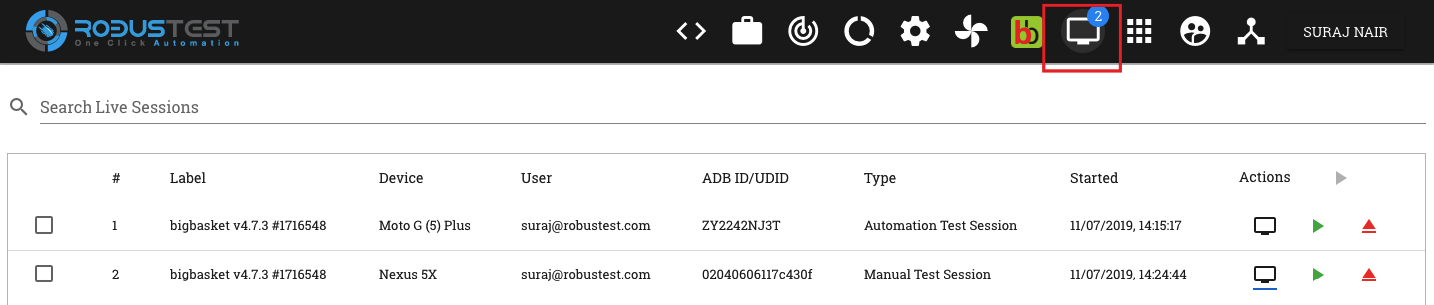
Live View dashboard displaying all currently active test sessions
Session Control Options
Live View provides comprehensive control options for managing your active testing sessions with powerful features and flexible configurations:
Real-time Device Screen Viewing
The Live Screen button (monitor icon) opens a powerful real-time device viewing experience:
Advanced Display Options:
📺 Real-time Display: Zero-delay live device screen streaming
🔍 Test Step Visibility: Watch automation test steps in real-time
📱 Multiple Resolutions: Adaptive screen sizing and quality
🎥 Recording Capability: Record sessions for later analysis
📊 Performance Overlay: Real-time performance metrics display
Device Control Capabilities:
👆 Touch Interactions: Click, swipe, and gesture support
⌨️ Keyboard Input: Direct text input to device
🔄 Device Rotation: Portrait/landscape orientation control
📲 Hardware Buttons: Volume, power, and navigation controls
📋 Clipboard Support: Copy/paste between device and computer
🔧 Enabling Device Control
To enable full device control during Live Screen viewing, append this parameter to the Live Screen URL:
?deviceControl=true
Example URL:
https://your-robustest-instance.com/liveview/session/123?deviceControl=true
This enables complete remote control capabilities including touch, swipe, and keyboard input.
Robust Session Continuity
The Resume Session button (green play icon) provides comprehensive session recovery capabilities:
When to Use Resume:
🌐 Browser Crash Recovery: Restore sessions after browser failures
📡 Network Interruption: Continue after connection drops
💻 Device Switching: Move sessions between computers
👥 Collaborative Testing: Share sessions with team members
⏰ Timeout Prevention: Extend session timeouts
Continuity Features:
💾 Progress Preservation: Maintain all test progress and state
🔗 Cross-browser Support: Resume from any browser or device
📱 App State Maintained: Application remains in current state
⚡ Instant Reconnection: Immediate session restoration
🔐 Secure Handoff: Secure session transfer mechanisms
Tip
Best Practice: Always use Resume Session instead of starting new sessions when returning to interrupted tests to maintain progress and save time.
Efficient Resource Management
The Release Device button provides clean session termination and resource optimization:
Release Scenarios:
✅ Testing Completion: Normal end of testing session
🚨 Emergency Release: Immediate device liberation needed
⚡ Resource Optimization: Free devices for team members
🧹 Session Cleanup: Remove inactive or stuck sessions
🔄 Device Reset: Prepare device for fresh testing
Optimization Advantages:
🏃 Quick Liberation: Immediate device availability
💰 Cost Efficiency: Optimize device usage costs
👥 Team Sharing: Make devices available to colleagues
🔄 Resource Cycling: Prevent device resource exhaustion
📊 Usage Analytics: Better resource utilization tracking
Warning
Important: Device release immediately terminates the session. Ensure you’ve saved all necessary test artifacts before releasing.

Interactive Live View showing device screen with control panel
Multi-Device Monitoring
Live View’s multi-device monitoring capabilities enable comprehensive testing scenarios across multiple devices simultaneously:
Simultaneous Device Screen Viewing
Monitor multiple devices in real-time with advanced multi-screen capabilities:
Advanced Viewing Options:
🪟 Multiple Windows: Open unlimited device screens simultaneously
⚡ Grid Layout: Organize screens in customizable grid patterns
🔄 Synchronized Monitoring: Coordinated test execution viewing
🎯 Focus Mode: Highlight primary device while monitoring others
📱 Responsive Scaling: Adaptive screen sizing for optimal viewing
Efficient Resource Usage:
💾 Memory Optimization: Intelligent resource management
🌐 Bandwidth Efficiency: Adaptive streaming quality
🖥️ GPU Acceleration: Hardware-accelerated rendering
⏱️ Latency Reduction: Minimized delay across all screens
🔋 Power Management: Optimized for extended monitoring sessions
Easy Multi-Device Setup
Quick Configuration Process:
Step 1: Session Selection
Select multiple active sessions from the Live View dashboard
Use checkboxes to choose desired devices for monitoring
Verify device compatibility and availability
Step 2: Screen Layout
Click “Start Multiplexing” to initialize multi-device view
Arrange windows according to your monitoring preferences
Configure screen resolution and quality settings
Step 3: Active Monitoring
Begin real-time monitoring across all selected devices
Use synchronized controls for coordinated testing
Monitor performance metrics across all devices
Step 4: Session Management
Control individual devices or all devices simultaneously
Save screenshots and recordings from multiple devices
End sessions individually or as a group
Powerful Testing Scenarios
Multi-Device Applications:
📱 Cross-Device Testing: Test app behavior across different devices
💬 Communication Apps: Monitor chat, call, and messaging features
🎮 Multiplayer Games: Test real-time multiplayer interactions
🔄 Synchronization: Verify data sync across multiple devices
📊 Performance Comparison: Compare app performance across devices
Monitoring Advantages:
⏰ Time Efficiency: Monitor multiple tests simultaneously
🔍 Comparative Analysis: Side-by-side behavior comparison
👥 Team Collaboration: Share multi-device views with team
📈 Comprehensive Coverage: Test across device ecosystem
🎯 Centralized Control: Manage all devices from single interface
System Requirements & Best Practices
Resource Requirements:
🌐 Bandwidth Usage: Multiple screens increase network consumption
💻 System Resources: Monitor CPU and memory usage carefully
🖥️ Screen Resolution: Optimize resolution for performance
📡 Network Latency: Consider network conditions for smooth streaming
🔋 Battery Impact: Extended monitoring affects device battery
Best Practices:
📱 Limit Concurrent Screens: Start with 2-4 devices maximum
⚡ Adjust Quality: Reduce streaming quality if performance lags
🖥️ Monitor Layout: Use efficient screen arrangements
⏰ Session Duration: Limit extended multi-device sessions
🔄 Rotate Devices: Periodically refresh device connections
Best Practices
Maximize your Live View experience with these proven strategies and recommendations:
Optimal Session Control
Efficient Resource Usage:
⏰ Regular Cleanup: Release unused sessions every 30 minutes
🏷️ Session Naming: Use descriptive, time-stamped session names
⏱️ Time Management: Monitor session duration and set alerts
🔄 Rotation Strategy: Rotate devices to prevent resource exhaustion
📊 Usage Tracking: Monitor device utilization patterns
Session Continuity:
💾 Progress Saving: Save test progress at regular intervals
🔗 Resume Planning: Keep session URLs for easy recovery
🌐 Browser Backup: Test resume capability across browsers
👥 Team Handoff: Document session details for team members
📱 Device Backup: Have alternate devices ready if needed
Effective Multi-Device Monitoring
Strategic Device Choice:
👥 Target Representation: Choose devices matching your user base
📊 Coverage Strategy: Test across different screen sizes and OS versions
⚡ Performance Tiers: Include high, medium, and low-performance devices
🌍 Geographic Distribution: Consider devices from different regions
🔄 Update Cycles: Test on devices with different OS update schedules
Optimal Layout Management:
📐 Grid Arrangement: Organize screens in logical grid patterns
🎯 Priority Focus: Place critical devices in primary viewing area
📱 Screen Sizing: Optimize individual screen sizes for visibility
⚡ Quick Access: Keep session controls easily accessible
👀 Eye Movement: Minimize eye strain with efficient layouts
Common Issues & Solutions
Network & Connectivity:
🌐 Network Check: Verify stable internet connection
🔄 Browser Refresh: Refresh browser if screens don’t load
🚀 Browser Update: Use latest browser versions
🔧 Cache Clear: Clear browser cache for persistent issues
📡 Bandwidth Test: Ensure sufficient bandwidth for multiple streams
System Optimization:
📱 Screen Reduction: Reduce concurrent screens if performance lags
🖥️ Resolution Adjustment: Lower screen resolution for better performance
💻 Resource Monitoring: Monitor CPU and memory usage
🔄 Device Rotation: Rotate devices to prevent overload
⏰ Session Limits: Set time limits for extended sessions
Expert-Level Optimization
Advanced Techniques:
🎯 Focused Monitoring: Use Live View for critical test phases only
📊 Metrics Integration: Combine Live View with performance monitoring
🔄 Automated Alerts: Set up alerts for session issues
👥 Team Protocols: Establish team protocols for Live View usage
📈 Usage Analytics: Track Live View usage patterns for optimization
Workflow Integration:
🔗 CI/CD Integration: Integrate Live View with automated workflows
📋 Test Management: Link Live View sessions with test case management
📊 Reporting Integration: Include Live View data in test reports
👥 Collaboration Tools: Integrate with team communication platforms
🎥 Recording Strategy: Develop systematic recording practices
💡 Pro Tip
Efficient Monitoring Strategy: Use Live View strategically during critical test phases rather than continuous monitoring to optimize resource usage and maintain system performance.
🎯 Quick Start Guide
For Multi-Device Monitoring:
✅ Select Sessions: Enable checkboxes for desired live session entries (minimum 2 required)
🚀 Start Multiplexing: Click the ‘Start Multiplexing’ button
👀 Monitor Devices: View and control selected devices in multi-device mode
🎛️ Manage Sessions: Use individual or coordinated controls as needed
See also
Related Documentation:
Manual Testing - Manual testing session management and workflows
RobusTest Hub - Hub-based testing and advanced monitoring capabilities
Health Page - Device and infrastructure health monitoring
Performance Testing - Performance monitoring and optimization
Multi-device testing - Multi-device testing strategies and best practices